


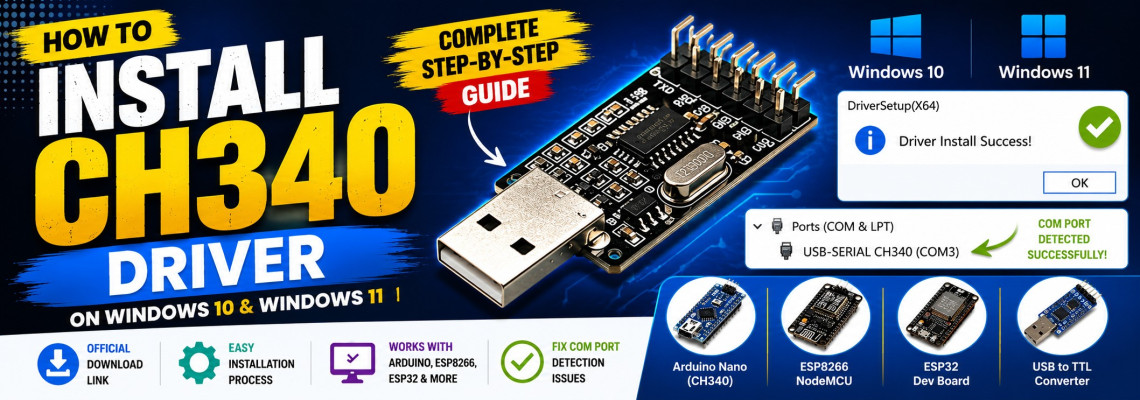
How to Install CH340 Driver on Windows System – Step-by-Step Guide
If your Arduino Nano, ESP8266 NodeMCU, ESP32 Board, or any CH340/CH341 USB-to-Serial device is not detected by Windows, then you need to install the CH340 driver.
In this tutorial, we will learn:
- What is CH340 Driver?
- Why it is required?
- How to download CH340 Driver?
- How to install it on Windows 10 and Windows 11?
- How to fix common driver issues?
What is CH340 Driver?
The CH340 is a USB-to-Serial converter IC manufactured by WCH Electronics.
It is commonly used in:
- Arduino Nano Clones
- ESP8266 NodeMCU
- ESP32 Development Boards
- USB to TTL Converters
- CNC Controllers
- 3D Printers
The driver creates a virtual COM Port in Windows so that software such as:
- Arduino IDE
- PlatformIO
- ESP Flash Tool
- Serial Monitor
can communicate with the board.
CH340 Driver Download Link
Official Download
Download CH340 Driver (Official WCH Website)
Driver supports:
- Windows XP
- Windows 7
- Windows 8
- Windows 10
- Windows 11
- 32-bit & 64-bit Systems
Microsoft WHQL Certified.
Before Installation
Connect your board to PC.
Open:
This PC → Manage → Device Manager
If the driver is missing, you may see:
- Unknown Device
- USB2.0-Serial
- CH340
- USB-SERIAL
under "Other Devices".
Step 1: Download Driver
- Open the official download page.
- Click CH341SER.EXE.
- Wait for the file to download.
File name:
CH341SER.EXE
Step 2: Run the Installer
- Double-click the downloaded file.
- Windows may show:
Do you want to allow this app to make changes?
- Click Yes.
The Driver Setup window will open.
Step 3: Install Driver
- Click INSTALL.
- Wait a few seconds.
- When installation completes, you will see:
Driver Install Success!
- Click OK.
The CH340 driver is now installed.
Step 4: Reconnect the Board
- Remove USB cable.
- Wait 5 seconds.
- Reconnect USB cable.
Windows will automatically detect the device.
Step 5: Verify Installation
Open:
Device Manager
Expand:
Ports (COM & LPT)
You should see:
USB-SERIAL CH340 (COM3)
or
USB-SERIAL CH340 (COM4)
This confirms successful installation.
Step 6: Check in Arduino IDE
Open:
Arduino IDE
Go to:
Tools → Port
You should see:
COM3
COM4
COM5
Select the newly created COM port.
Now your board is ready for programming.
Common Errors and Solutions
Error 1: Board Not Detected
Solution
- Change USB cable.
- Try another USB port.
- Reinstall driver.
- Restart PC.
Error 2: No COM Port Appears
Solution
- Open Device Manager.
- Uninstall Unknown Device.
- Disconnect board.
- Install CH340 Driver again.
- Reconnect board.
Error 3: Arduino Upload Failed
Error:
avrdude: ser_open(): can't open device
Solution
- Select correct COM Port.
- Close Serial Monitor.
- Reconnect USB cable.
- Restart Arduino IDE.
Error 4: USB Device Not Recognized
Solution
- Install latest CH340 Driver.
- Try another USB cable.
- Use another USB port.
- Check board hardware.
How to Uninstall CH340 Driver
- Open Device Manager.
- Right-click:
USB-SERIAL CH340
- Select:
Uninstall Device
- Tick:
Delete Driver Software
- Click Uninstall.
Frequently Asked Questions (FAQ)
Is CH340 Driver Safe?
Yes. The official driver is provided by WCH Electronics and is digitally signed.
Does Windows 11 Need CH340 Driver?
Many systems install it automatically, but manual installation is still required for some boards and clone devices.
Which Boards Use CH340?
- Arduino Nano Clone
- ESP8266 NodeMCU
- ESP32 Development Board
- USB-TTL Adapters
- CNC Controllers
- 3D Printer Controllers
Conclusion
Installing the CH340 Driver is essential when Windows cannot detect your Arduino, ESP8266, ESP32, or USB-to-Serial device. After installing the driver and verifying the COM port in Device Manager, your board will be ready for programming through Arduino IDE or any serial communication software.
Leave a Comment